

Organization Settings
What are Organization Settings?
Organization Settings is where you manage the core details of your FlowQi organization: its name, logo, size, website, address, primary contact details, and the default language. These settings describe your organization across FlowQi and only apply to the organization you are currently working in.
You might call it company settings, account settings, or the tenant — in FlowQi it is Organization Settings.
Where to find Organization Settings
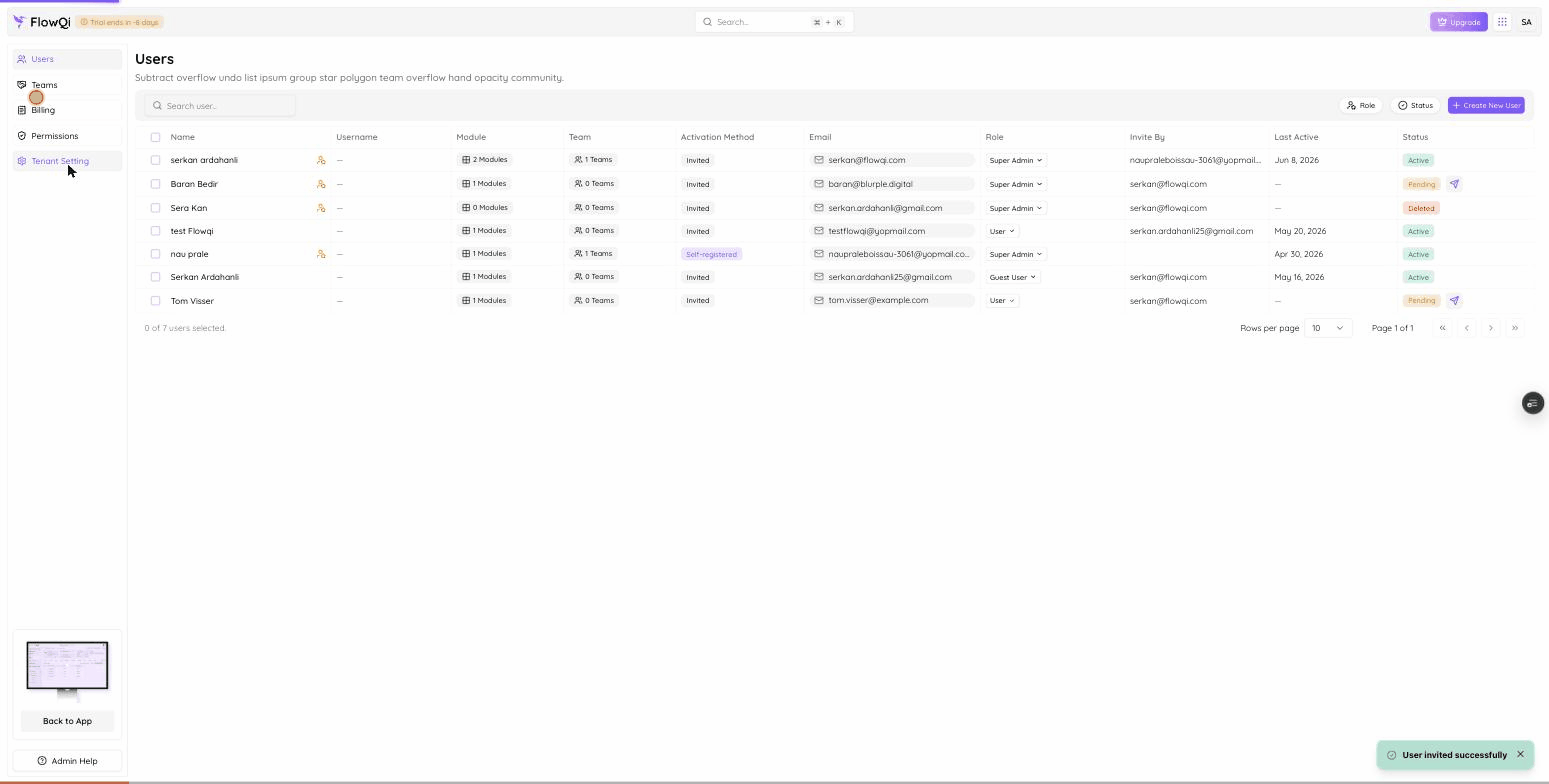
Open the Admin Console from your avatar menu (click your profile picture in the top-right corner, then Admin Console) and go to Tenant Settings in its sidebar. The page is split into sections — Organization, Address, and Business registry — with a Save button fixed at the bottom.
These are your organization’s (tenant’s) workspace-wide settings — distinct from your personal profile. Changing them affects everyone in the organization.
Organization section
The Organization section holds your company profile and contact information.
| Field | Description |
|---|---|
| Organization name | The name of your organization |
| Organization size | Number of people, chosen from a list (see below) |
| Website | Your company website, entered as a full URL starting with https:// |
| Logo | Your organization’s logo (see below) |
| Primary contact email | The main email address for your organization |
| Primary contact phone | The main phone number for your organization |
| Default language | The default language for your organization |
Organization size
Pick your organization size from the list:
- 1–10
- 11–50
- 51–200
- 200+
- 201–500
- 501+
Default language
The default language is chosen from FlowQi’s supported languages:
- English
- Nederlands (Dutch)
- Türkçe (Türkiye) (Turkish)
The logo
You have two ways to set your organization’s logo:
- Automatically from your website. When you enter your website URL, FlowQi looks up your company logo from that domain and shows a preview. Make sure the URL is correct so the right logo is found.
- Upload your own. Click Change logo to pick an image file from your computer. Accepted formats are JPEG, PNG, and WebP.
Use Remove to clear the current logo or preview. If no logo is set, FlowQi shows your organization’s initials as a placeholder.
Enter your website with the full address, including https://. The logo lookup needs a valid URL to find your company’s logo.
Address section
The Address section holds your organization’s postal address:
| Field | Description |
|---|---|
| Street | Street and house number |
| Postal code | Postal or ZIP code |
| City | City |
| Country | Country |
Business registry section
The Business registry section holds your organization’s official business registration details, such as the registered company name and registration number. Fill these in to keep your legal and billing records accurate.
Saving your changes
- Edit the fields you want to change.
- If needed, set a new logo via Change logo or by entering your website.
- Click Save at the bottom of the page.
You’ll see a confirmation when your settings are saved. All fields are optional, so you can fill in as much or as little as you need.
Permissions
What you can do here depends on your role:
- View — to open Organization Settings you need the view organization settings permission. Without it, the page is not available.
- Update — to change settings, including the logo, and to use the Save button, you need the update organization settings permission.
If the Save button or the logo controls are missing, you’re viewing the page in read-only mode and need the update permission — ask your administrator. See Roles & Permissions for how access is decided, and Billing for your subscription and invoicing details.
Organization Settings always apply to the organization you are currently signed in to. If you belong to more than one organization, switch to the right one before making changes.