

Managing Organizations
What is an organization?
An organization is a company in your FlowQi CRM — a customer, prospect, or supplier. Each organization has its own record with a name and details, email addresses, phone numbers, addresses, an industry, a logo, linked contacts, labels, tasks, and projects.
You might call them customers, clients, companies, or accounts — in FlowQi they are all organizations.
Where to find Organizations
In the left sidebar, click Organization. You’ll see your recent organizations and a button that opens the full organizations overview (/crm/organizations).
The organizations overview
The list shows the following columns per organization:
| Column | Content |
|---|---|
| Name | Organization name with logo or initials (click to open) |
| Type | Customer, Prospect, or Supplier |
| Industry | The organization’s industries |
| The primary email address | |
| Country | The organization’s country |
| Circle | The circle the organization is visible in |
| Owner | The user who owns the record |
| Status | Active, Inactive, or Archived |
At the top of the list you can:
- Search — type in the search bar to search organizations.
- Filter by status — All, Active, Archived, or Inactive.
- Sort — by Name, Owner, or Country.
Adding an organization
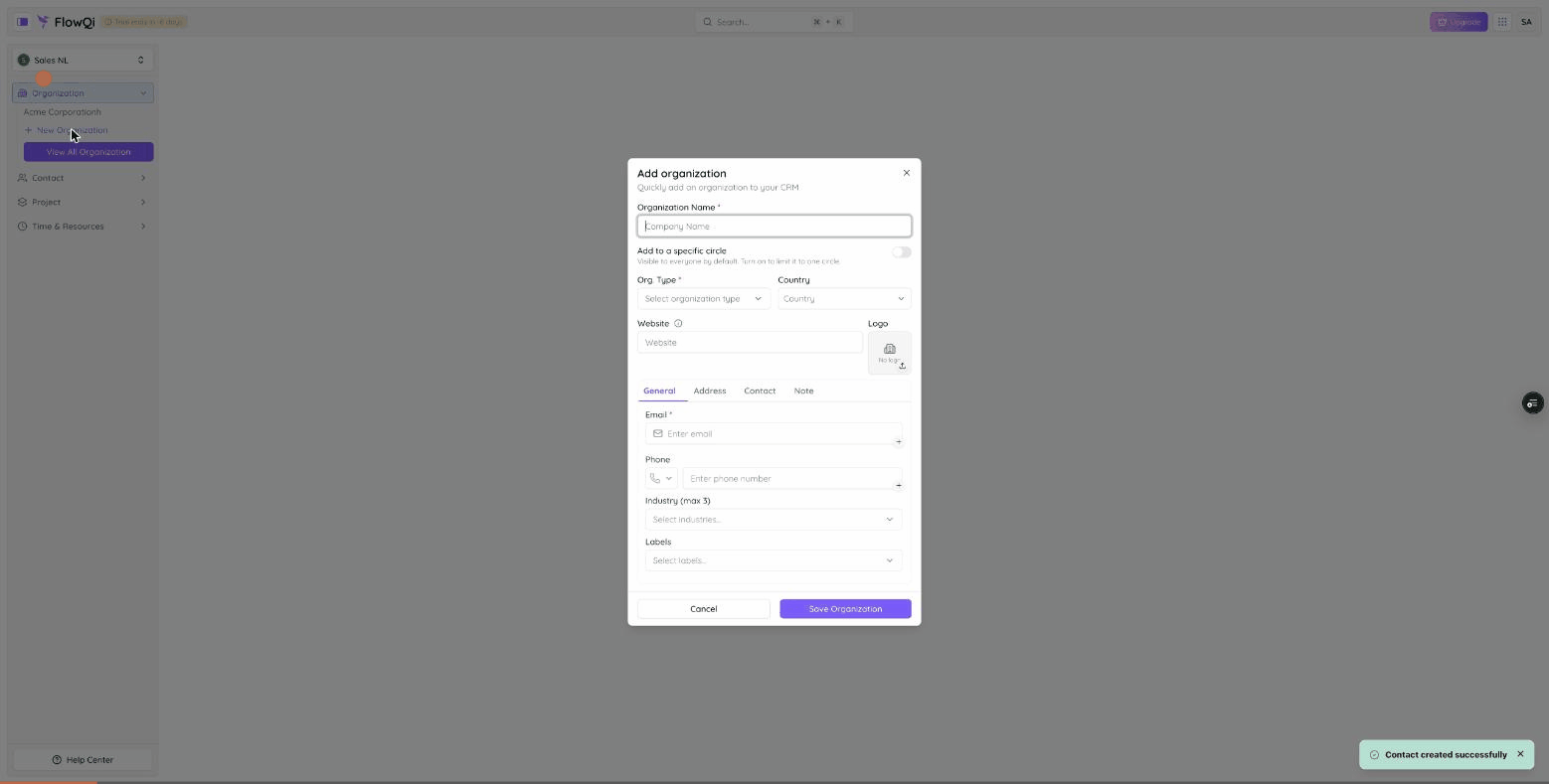
- Click Add organization (top right), or Create Organization in the sidebar.
- In the Add organization dialog, three fields are required:
- Organization Name
- Org. Type — Customer, Prospect, or Supplier
- Optionally fill in the rest:
- Add to a specific circle — off by default (visible to everyone); turn it on to limit the organization to one circle.
- Country, Website, and a Logo
- Under the General tab: phone, industries (max 3), and labels
- Under Address, Contact, and Note: address details, linked contacts, and a free-form note
- Click Save Organization.
Enter phone numbers in international format, starting with a country code — for example +31612345678. If you fill in a website, FlowQi suggests a matching email address (for example info@yourcompany.com).
Editing an organization
- Open the organization by clicking its name.
- Click the gear icon (settings) in the header.
- The settings panel is organized in sections:
- General information — organization name, type, legal name, company registration number, owner, website, country, labels, circle, and industry
- Contact — email addresses and phone numbers
- Address — addresses
- Description — the organization description (notes)
- Click Save changes.
Linking contacts
Open an organization and go to the Contacts tab to see the people linked to it. Click + to add a contact — the new contact is automatically linked to this organization and placed in the same circle. You can also link a contact from the contact’s own record (see Managing Contacts).
An organization and the contacts linked to it must be in the same circle (or in your organization’s default circle). This keeps data from leaking between circles.
Industries and labels
- Industries classify the organization (for example “Software” or “Retail”). Pick up to 3 industries from the list.
- Labels help you categorize organizations further (for example “VIP” or “Key account”). If a label doesn’t exist yet, you can create it on the fly.
You set both under General when creating an organization, or later in the settings panel.
Status: active, inactive, or archived
An organization has a status: Active, Inactive, or Archived. Use the status filter at the top of the overview to switch between them. Archiving is described in detail below.
Archiving, deleting & restoring
FlowQi keeps three distinct states so you never lose data by accident. Deleting no longer just hides an organization — deleted organizations go to a recoverable Trash, and only a true purge removes them for good.
| State | What it means | How to undo it |
|---|---|---|
| Archived | Done with the organization, but you want to keep it. It’s hidden from the active list and from pickers, and becomes read-only — but its data stays intact. | One click to Unarchive and bring it back. |
| In Trash (deleted) | Removed from your views but still fully recoverable. It sits in the Trash bin. | Restore it from Trash, or remove it for good. |
| Purged | Permanently deleted — the organization and its data are gone. Only possible from Trash. | Cannot be undone. |
Archiving an organization
Open the organization, click the gear icon, and in the General section use the Archive panel. An archived organization shows a banner reading “This organization is archived and read-only. Unarchive it to make changes.” — click Unarchive there or in the same panel to restore it.
To find archived organizations again, click Show archived at the top of the overview (or set the status filter to Archived).
Deleting an organization (move to Trash)
- In the overview, select one or more organizations with the checkboxes.
- In the action bar at the bottom, click Delete.
- Confirm in the dialog.
The organization moves to Trash rather than disappearing for good. Trash records who deleted each item and when.
To edit a single organization quickly, select exactly one row and click Edit in the same action bar.
Restoring or permanently deleting from Trash
- At the top of the overview, click Trash.
- In the Trash — Organizations dialog, select one or more rows.
- Click Restore to bring them back, or Delete permanently to purge them.
Purging cannot be undone. Permanently deleting asks you to confirm first, and warns that the action cannot be undone. If you’re not sure, archive the organization or leave it in Trash instead.
Permanently deleting (purge) is permission-gated — not everyone who can delete can purge. See Trash, archive & recovery for how these permissions and the recovery model work across FlowQi. The same Trash, archive, and restore flow applies to contacts .
Permissions
What you can do with organizations depends on your role. There are separate permissions for viewing, creating, editing, archiving, deleting, restoring, and permanently deleting (purging) organizations, and these can apply to all organizations, only your own, or your team’s. If you don’t see a button (e.g. Create organization or Delete permanently), you’re missing the matching permission — ask your administrator.
An organization’s detail page
When you open an organization, the header has tabs to related information:
- Tasks — tasks linked to this organization
- Projects — this organization’s projects
- Contacts — the contacts linked to this organization
The gear icon next to the tabs opens the settings panel described above.