

Statuses & Sections
What are statuses and sections?
On the Board, a project’s work is organized into sections — and each section is a status column. Moving a task into a section is how you set its status: a card in the To Do section has the To Do status, a card in In Progress has the In Progress status, and so on.
You might call them columns, stages, phases, or swimlanes — in FlowQi they are sections, and each section is a status.
Sections are a property of the project, so the columns you set up apply to everyone working in that project. To learn how the Board fits alongside the List, Calendar, Dashboard, and Files, see Project Views .
Status categories
Every status belongs to one of three fixed status categories. The category decides where the column sits on the Board and what the status means.
| Category | What it means |
|---|---|
| To Do | Work that hasn’t started. This is the single opening column, pinned to the far left. |
| Active | Work in progress. Every column you add yourself lives here. |
| Closed | Finished work. A task counts as completed once it’s in this category. This is the single closing column, pinned to the far right. |
The Board always groups and sorts its columns in category order: To Do → Active → Closed. You can rearrange the Active columns in between, but the To Do and Closed columns stay pinned to the two ends.
The default columns
A new project starts with two visible columns:
- To Do (red) — in the To Do category.
- In Progress (green) — an Active status.
There’s also a Closed category. It stays out of the way until you need it: use the Show Completed toggle at the top-right of the Board to reveal completed tasks and the Closed column.
Anatomy of a section column
Each section column on the Board shows:
- Its name.
- A task count of the cards inside it.
- A + to add a task at the top of the column.
- A ⋮ menu with the section’s actions.
At the bottom of every column is Add Task to add a card at the foot of that section, and at the far right of the Board is New Section to add another column.
Adding a section
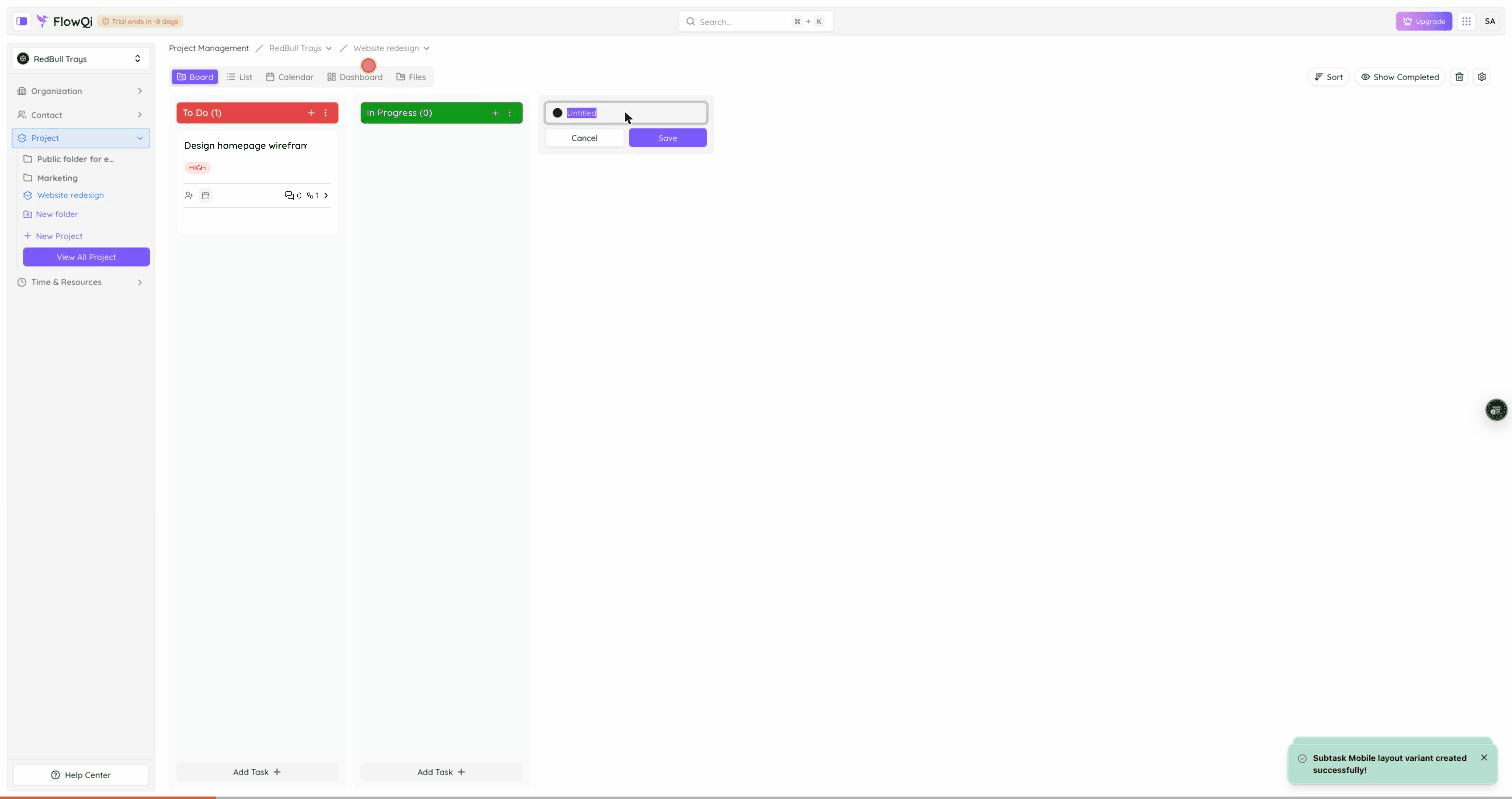
To add a new column:
- Click New Section at the far right of the Board — or open a column’s ⋮ menu and choose Add column after.
- In the inline form, pick a color dot and type a name.
- Click Save.
New custom columns are added under the Active category. To Do and Closed stay pinned to the two ends, so your new section always lands somewhere in the middle of the board.
The column ⋮ menu
Open the ⋮ menu on any column header for its actions:
| Action | What it does |
|---|---|
| Rename section | Change the column’s name. |
| Add column after | Insert a new Active column to the right of this one. |
| Edit status | Change the status’s name and color. |
| Hide all empty columns | Collapse every column that currently has no tasks, to tidy up the view. |
| Delete | Remove the column from the project. |
Moving a task between sections
Moving a task to another section changes its status. There are two ways to do it:
- Drag its card from one column to another on the Board.
- Open the task and use its Status field: the › button advances the task to the next status, and ✓ marks it complete (moving it into the Closed category).
Reordering columns
You can reorder the custom Active columns — drag them into the order that matches how your team works. The To Do and Closed columns are fixed at the two ends and can’t be moved between the Active columns.
Deleting a section
You can delete the custom Active columns you’ve added. Use Delete from the column’s ⋮ menu.
Deleting a section also removes the tasks inside it. The tasks are soft-deleted along with the column, so move any cards you want to keep into another section first.
Permissions
What you can do with sections depends on your role in the project. If you don’t see a control such as New Section or Delete, you’re missing the matching permission — ask your project owner or administrator.