

Working with Tasks
What is a task?
A task is a unit of work inside a FlowQi project. Every task connects to a status, a person, and a date, can carry tags and a description, and optionally links to an organization or contact — and it rolls up the time logged against it. Tasks always live inside a project; you create and manage them from the project’s views.
You might call them to-dos, action items, or tickets — in FlowQi they are tasks.
Creating a task
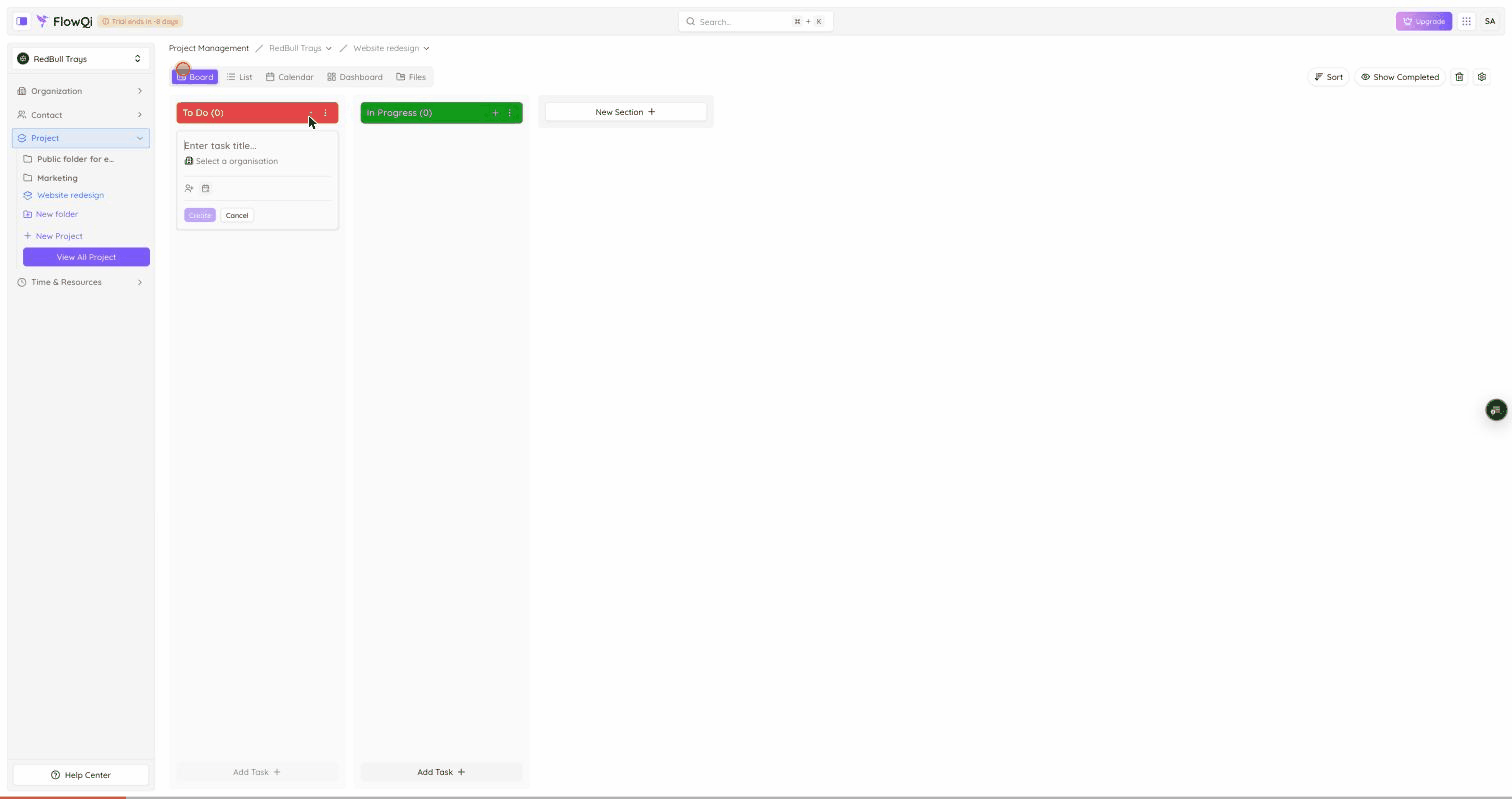
You add tasks from whichever view you like to work in — the Board or the List view both create the same task. It’s entirely your choice; some people prefer the Board’s columns, others the List’s rows.
- Open Project in the left sidebar and pick a project.
- Click Add Task:
- On the Board, use Add Task at the bottom of a column (or the + in a column header).
- In the List view, use Add Task under a status section.
- A quick-add card appears. Enter the task title.
- Optionally pick an organization, an assignee, and a due date.
- Click Create.
The task is created with Low priority by default, in the status of the column or section you added it to.
The column or section you add a task to sets its starting status. On the Board you can drag the card to another column later to change the status, or change it from the task’s Status field in any view.
The task card
On the Board, each task card shows:
- The task title
- A priority pill — Low, Medium, High, or Urgent
- The assignee
- The due date
- A comments count
- An attachments/links count
In the List view the same tasks appear as rows, with these details shown as columns.
Opening a task
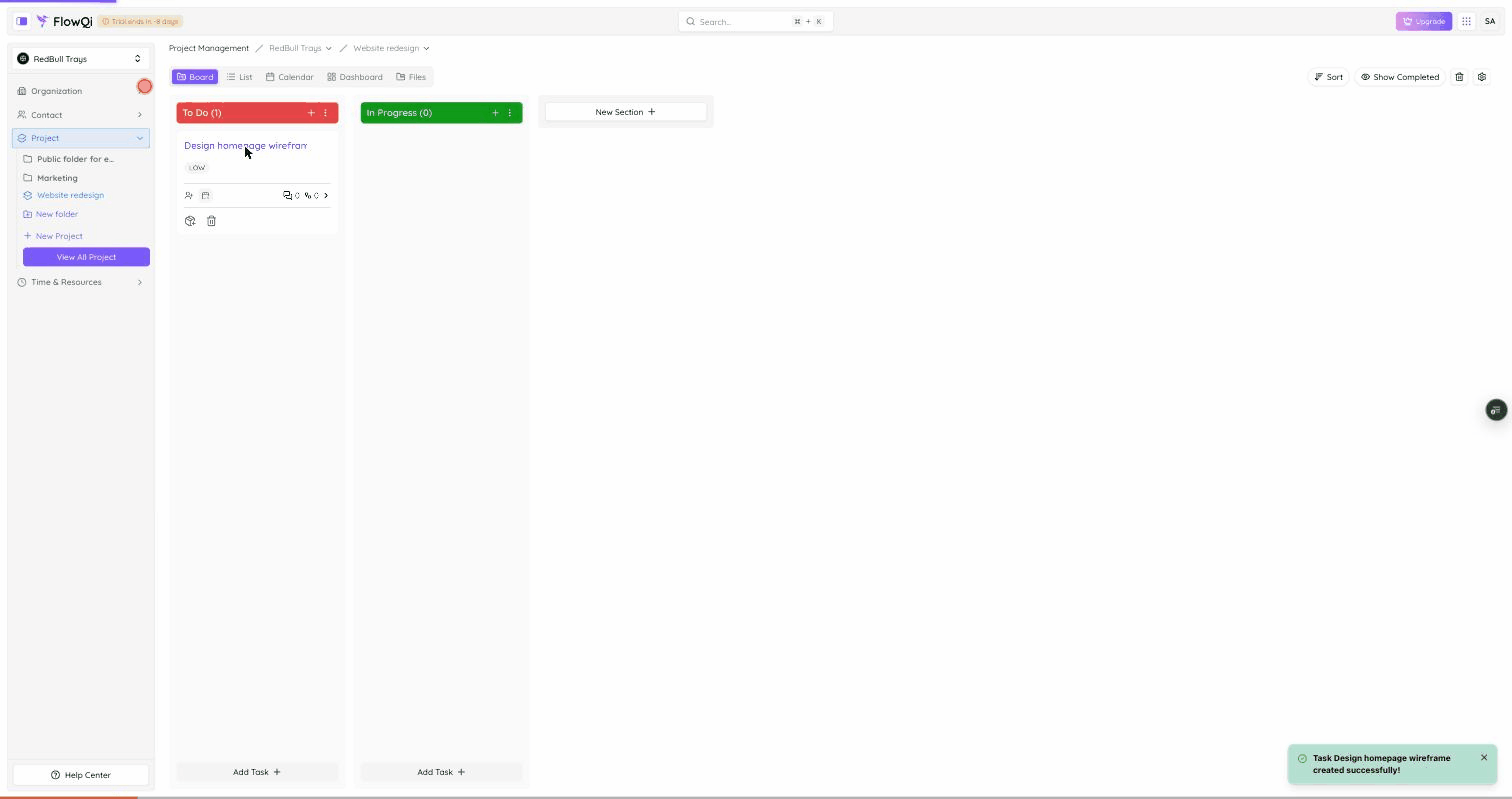
Click a task to open its detail panel. It slides in from the right and can be opened fullscreen. From here you edit every field and work with subtasks, the checklist, comments, work logs, and activity.
Task fields
| Field | Description |
|---|---|
| Assignee | The person responsible for the task. An assignee must be a member of the project’s Circle. |
| Status | Change it here; the › button advances the task to the next status , and ✓ marks it complete |
| Due Date | When the task is due. A task past its due date is shown as overdue. |
| Tags | Assign tags from the project’s tags, or create a new one |
| Description | A rich-text field describing the work |
Under More you’ll find:
| Field | Description |
|---|---|
| Priority | Low, Medium, High, or Urgent — defaults to Low |
| Organization | A linked organization. It must share the project’s Circle. |
| Contact | A linked contact. It must share the project’s Circle. |
| Time tracked | Total time logged against the task (for example 0h 0m 0s) |
Milestones
A task can be marked as a milestone — a key checkpoint in the project, such as a deliverable, a sign-off, or the end of a phase. Milestones let you call out the moments that matter most so they stand out among the regular tasks.
Subtasks
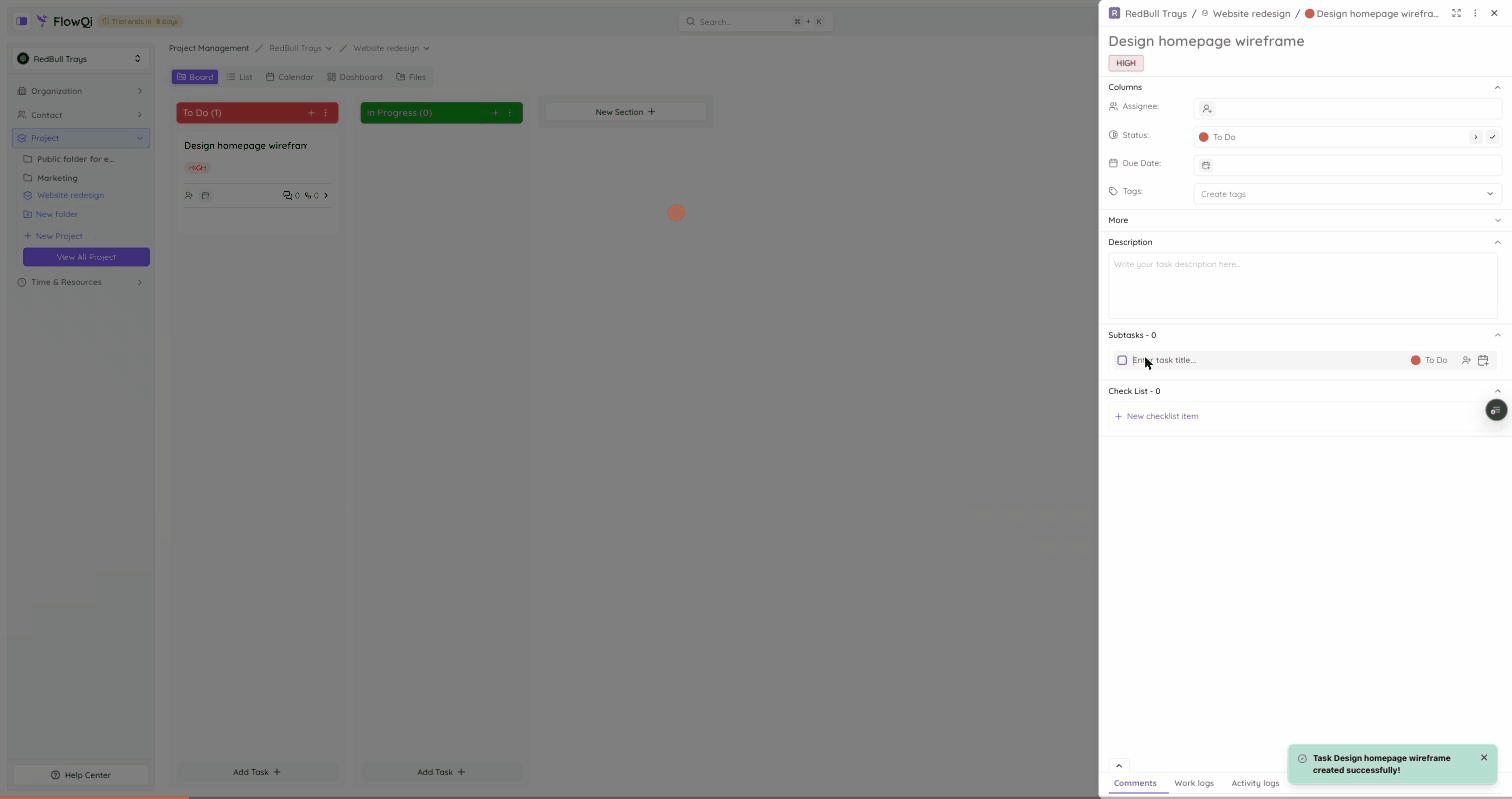
A task can have subtasks — smaller tasks nested under it — and a subtask can have subtasks of its own, so you can break work down as deeply as you need. Use subtasks to split a larger task into the concrete steps that make it up.
For the full story on subtasks, the checklist, comments, and work logs, see Task Collaboration .
Status
Status lives in the sections of the Board — by default To Do and In Progress. Move a task to another status by dragging its card to another column, or open the task and use the Status field: the › button advances it to the next status, and ✓ marks it complete. For how statuses and sections are set up, see Statuses & Sections .
Ordering tasks
Within a section you can reorder tasks by dragging a card up or down — handy for putting the next thing to work on at the top. Dragging a card to a different column instead changes its status.
Priority
Set a priority to signal urgency. The options are Low, Medium, High, and Urgent. New tasks start at Low. Priority shows as a pill on the task card and can be changed under More in the task detail.
Tags
Tags help you categorize tasks within a project. Add them through the Tags field on the task — create a new tag or assign an existing one.
Linking to organizations and contacts
Under More, link a task to an organization and a contact. You can also pick an organization right from the quick-add card when you create the task.
A task belongs to the circle of its project. When you link an organization, you can only pick organizations in the same circle as the project, so data stays within the right circle.
Tracking time
A task rolls up the time logged against it as Time tracked, shown under More. You add individual entries on the task’s Work logs tab.
This page only covers the Time tracked roll-up. The full story on time tracking, work-log entries, and budgeting lives under Time & Resource Management.
Archiving, deleting & restoring
Deleting a task in FlowQi doesn’t erase it — it goes to a Trash inside the project, where you can restore it or remove it for good. Tasks themselves aren’t archived (archiving happens at the project level — see Managing Projects ), but the same delete-to-Trash safety net applies.
| State | What it means | How to reverse it |
|---|---|---|
| In Trash | The task is deleted and hidden from the board and list. Any subtasks go to the Trash with it. It’s recoverable. | Restore it from the project’s task Trash. |
| Purged | The task and its subtasks are permanently removed. | Not reversible. |
Deleting a task (move to Trash)
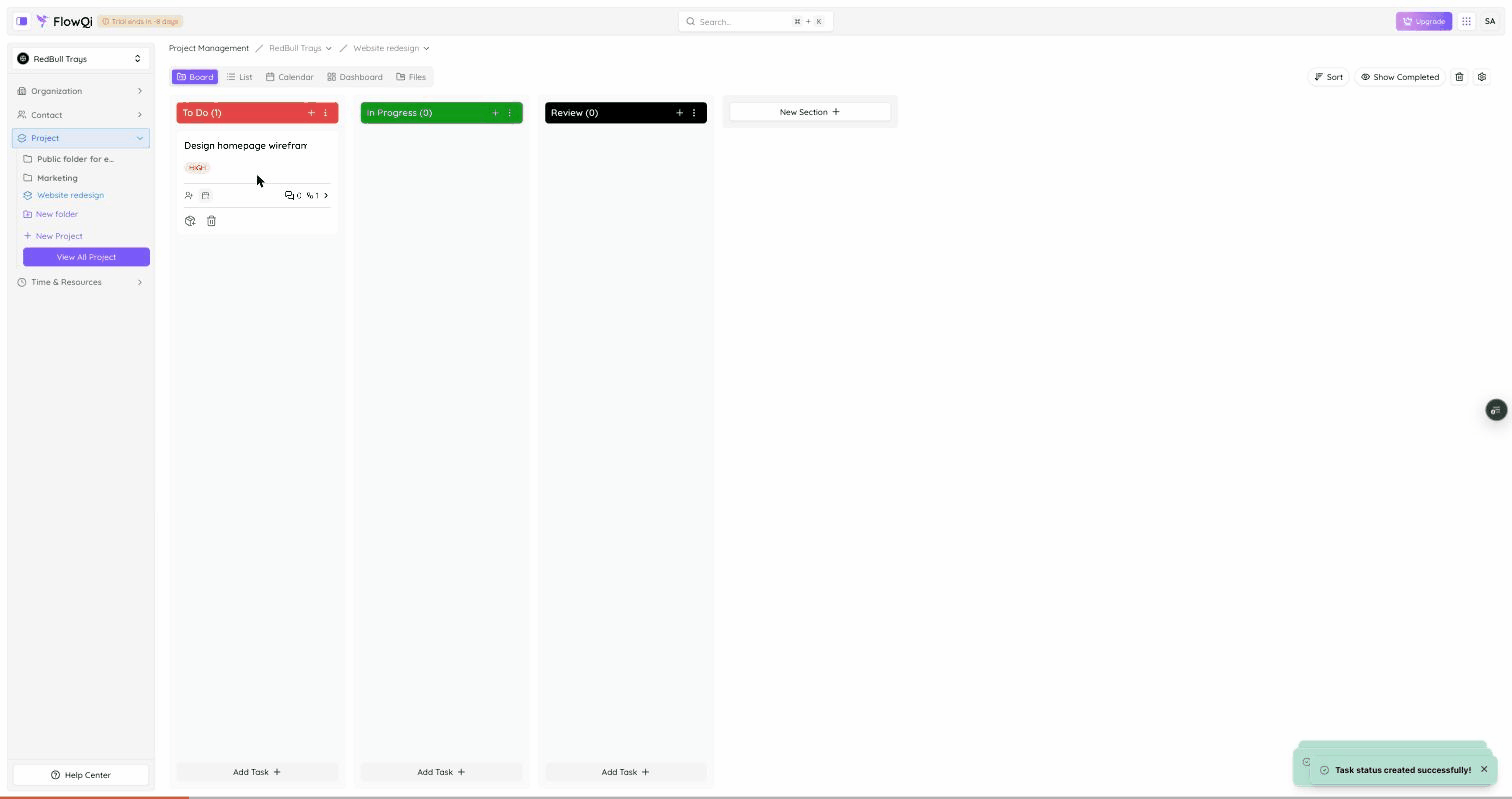
Delete a task from its card or row — use the task’s menu (or select tasks and use the action bar). The task moves to the project’s Trash rather than being erased.
Deleting a task also moves all of its subtasks to the Trash. They come back together when you restore the parent.
Restoring from Trash
- Open the project and click the Trash icon in the project toolbar to open Trash — Tasks.
- The Trash lists the project’s deleted tasks, with who deleted each one and when. Only parent (top-level) deleted tasks are shown — subtasks are restored with their parent, so they aren’t listed separately.
- Select one or more tasks with the checkboxes, then click Restore.
Restoring a task brings its subtasks back too. When you delete a task, FlowQi remembers its whole subtask tree and restores the entire family together — you don’t restore subtasks one by one.
If the task’s project itself was deleted, restore the project first — you can’t restore a task into a project that’s still in the Trash. See Managing Projects .
Purging: permanent deletion
From the task Trash you can remove a task for good. This is the only way to permanently delete a task, and it cannot be undone.
- In Trash — Tasks, select the tasks you want to remove permanently.
- Click Delete permanently.
- A confirmation dialog asks you to type the exact phrase shown (for example
delete 3 items) before the button activates. - Confirm to purge.
Purging permanently deletes the task and all of its subtasks. This action cannot be undone. Permanent deletion is permission-gated; if you don’t see Delete permanently, ask your administrator. For how the Trash and recovery work across FlowQi, see Trash, Archive & Recovery .
Permissions
What you can do with tasks depends on your role in the project. If you don’t see a button such as Add Task, you’re missing the matching permission — ask your project owner or administrator.